

Quick start
Run these on the server, as root or with sudo.
The guided way
Section titled “The guided way”sudo vps-readyWith no arguments on a terminal, vps-ready starts a short setup. It checks that you are root and that the binary can run from the safety timer, then looks at the server and asks:
? What will this server run? > Web apps or Docker: opens ports 80 and 443 (recommended: Docker is installed) Something else: only SSH is open? Admin user for logging in: admin? Open ports besides SSH (22, always open) (Space toggles, Enter continues) [x] 80/tcp [x] 443/tcp [x] 443/udp? Pick which modules to run yourself? (y/N) no- The recommended answer comes first and says why.
- The admin line says whether the name is a new or an existing account, and which SSH keys it gets.
- Ports that something listens on are offered unchecked; unchecked ports are blocked.
yto the last question lets you pick modules one by one.
Then it shows the same plan as apply, asks Apply N changes? [y/N] and applies behind the safety timer; confirm from a new login as described below. It ends with the sudo vps-ready apply --profile ... command that repeats the setup without questions, and offers to save your answers to vps-ready.toml when they differ from a built-in profile.
Ctrl-C at a question stops with Nothing was changed. To read what a module does first, run vps-ready modules ssh.server (reference).
Step by step
Section titled “Step by step”Prefer to run each stage yourself? This is the same flow without the questions. The first two steps change nothing, so you can stop after either one.
-
Audit: see what fails.
sudo vps-ready auditIt lists the controls that fail or could not be checked, each with the reason it matters and, when a module can fix it, the command that does.
--allalso lists the passing ones, and--jsonprints everything for CI. The end of a real run:5 passed, 5 failed (1 high, 3 medium, 1 low), 0 unknown, 19 skippedSkipped: kernel settings are not checked inside a container.Skipped: Docker is not installed.vps-ready can fix all 5 (SSH-002, FW-001, SSH-001, UPD-001, SSH-005): run `sudovps-ready plan --module ssh.server --module firewall.inbound --moduleupdates.auto`. -
Plan: read what would change.
sudo vps-ready plan --profile minimalA diff of every file and setting, grouped by module, with the controls each module fixes and a reversibility label per change. Nothing is written. Without
--profile,planandapplycover only kernel settings and automatic updates, which cannot lock you out. -
Apply: make the changes.
sudo vps-ready apply --profile minimalapplyprints the plan again and asks before it changes anything (Apply 16 changes? [y/N]). Withminimalorwebit arms the safety timer before the first change, makes the changes, and then ends like this, with your own admin user, address and port:Changes are live. To keep them, open a NEW terminal on your computer and runthis to show you can still log in:ssh -t -o ControlPath=none -p 22 admin@203.0.113.10 sudo vps-ready confirmIf no new session confirms by 14:07:30 UTC (5:00 left), every change is rolled back.More time: sudo vps-ready confirm --extendDo not edit files vps-ready manages until you confirm: an unconfirmed change reverts them.Ctrl-C stops waiting here, not the timer. -
Confirm: prove a new login works.
Copy that
sshline into a new terminal on your own computer. If the login works,confirmsucceeds, the first terminal printsConfirmed: the changes of transaction ... stayandapplyexits 0.If the new login fails, do nothing: when the timer runs out (or at the next boot) every change is rolled back and your old login works again.
-
Undo: whenever you want.
Terminal window sudo vps-ready history # list transactions, newest firstsudo vps-ready rollback --last # undo the last oneEvery change is journaled, so you can undo a transaction at any time, not only while the safety timer runs.
See a real session: audit, plan and apply on Debian 13
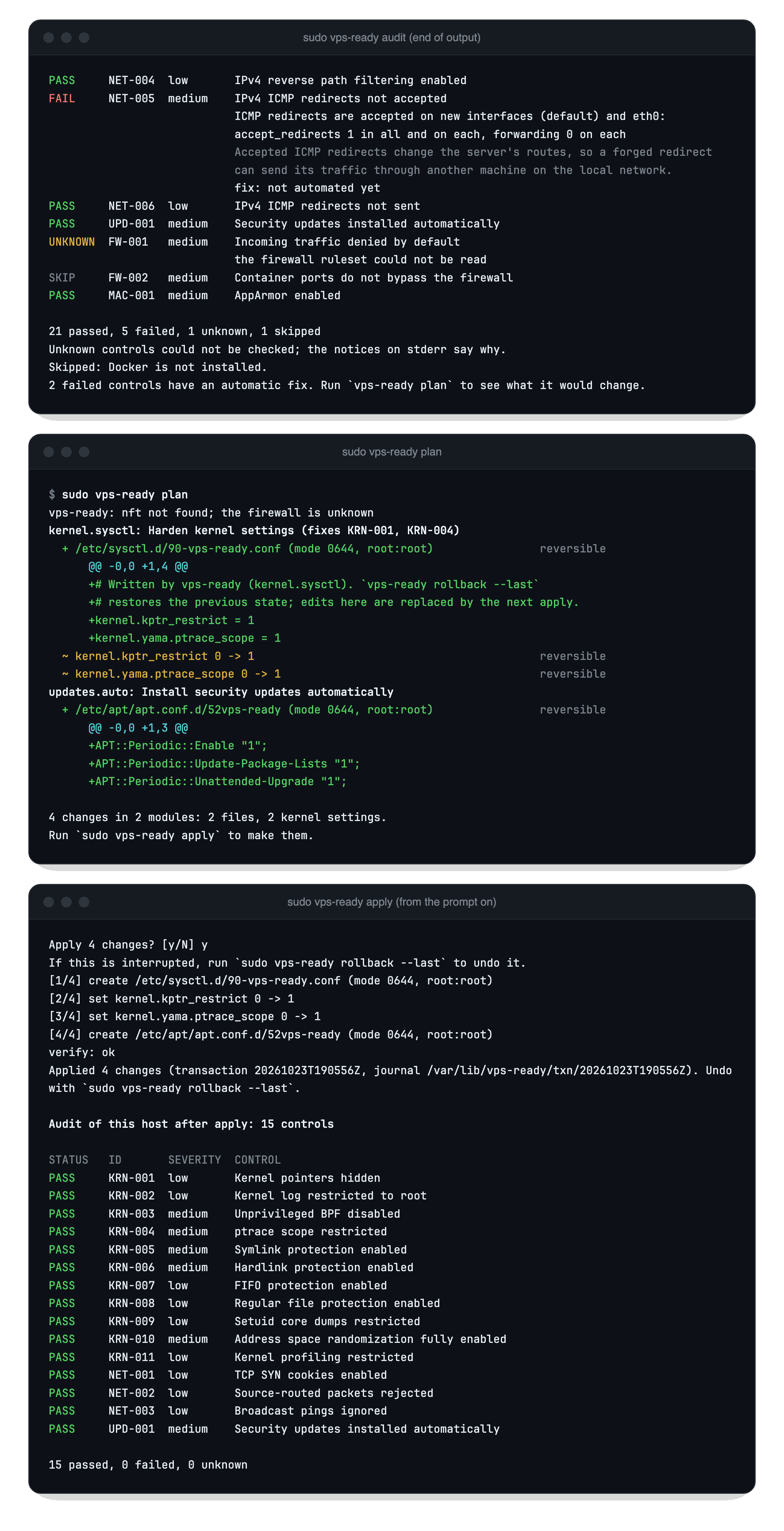
This run used a plain apply (kernel settings and automatic updates), so no confirm was needed.
- What each profile changes, module by module: Profiles and modules.
- Every flag and exit code: Commands.
- Upgrading later is the same install command again: see Install.
Feedback
Questions, ideas or problems with vps-ready.